
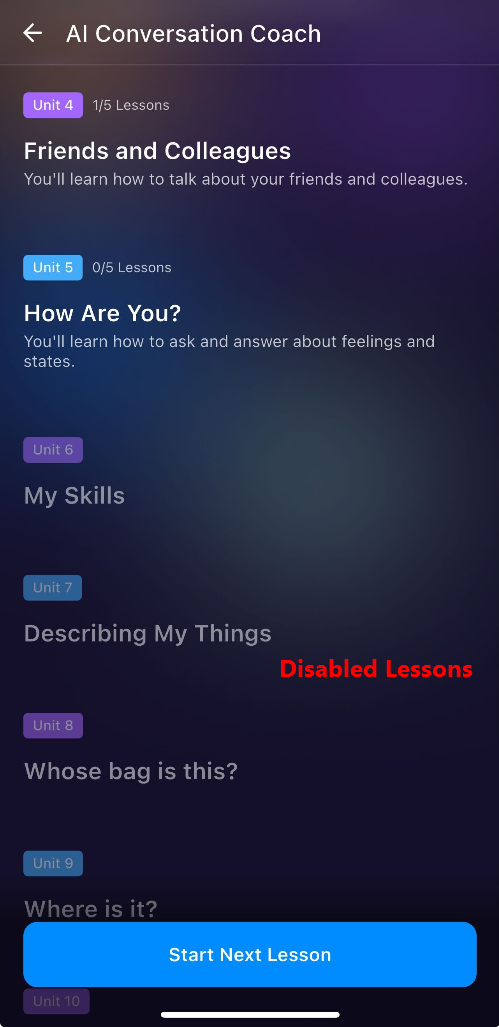
Lessons in Learning Path are disabled or greyed out
If you notice some lessons in the learning path are greyed or disabled. This is not a technical issue when the units and lessons are greyed out. This happens if you returned to an old and incomplete Learning Path.
Here is the explanation to how Learning Path works.
When you created a new Learning Path: Our system automatically disabled (grayed out) any units in the previous, incomplete Learning Path that you had not yet studied.
Your current view: Because you returned to the old/incomplete Learning Path, those units still appear grayed out because they were disabled the moment you generated the new path. You can only re-do the lessons in this old path that you had already finished before.
Common Questions
Q1: Can I continue to study the incompleted lessons in my old learning path?
A: No. Once you generate a new learning path, any incomplete units and lessons from your previous path will be disabled. They will appear greyed-out when you view them under your Past Learning Paths history.
Q2: I cannot access the greyed-out lessons, is this a bug?
No. This is an intentional system feature designed to keep your dashboard organized. When you generate a new Learning Path, any unfinished units or lessons from your previous path are automatically deactivated and greyed out so you can focus entirely on your current goals.
Q3: Can I delete an incomplete learning path in "Past Learning Paths"?
A: No. The app does not currently support deleting past or incomplete learning paths. They will remain saved in your Past Learning Paths section to help you keep a complete history of your study journey and CEFR levels over time.
Q4: How to return to the current/in progress learning path?
See the instruction below and follow all the steps correctly.
Identify the Learning Path (Example: CEFR A1 is an old one, and you want to go to the latest one CEFR C)
Click the drop-down icon on the right side.
In this pop-up, click on "Your name's Learning Path" to return (Example: Andy's Learning Path - 14 units - CEFR C). You should be able to access all units and lessons in this learning path.
Q5: How to know I am in my latest (in-progress) learning path?
To easily tell whether you are currently working on your active learning path or just reviewing an old one, open your learning path menu and look for the blue glow:
The Glowing Border (You are in your active path): As shown in the right image, if the "Andy's Learning Path" card has a vibrant blue glowing outline, you are actively inside and viewing your current, in-progress path.
No Glow (You are viewing a past path): As shown on the left image, if the card has a plain background with no glowing border, it means you have navigated away to view or review a past learning path instead.
Quick Tip: Think of the blue glow as your app's "You Are Here" marker. If it's lit up, you are exactly where you need to be to keep making forward progress!
Was this article helpful?
Or open the chat in the corner to ask follow-up questions.