
Cancel Apple Subscriptions or Free Trials
Important: Please read the two points below before proceeding.
- If your bank statement shows the payment comes from APPLE or if you receive the receipt from APPLE, you can follow the instructions below to cancel the subscription.
- If your subscription was not signed up via APPLE, this instruction below is NOT applied to your subscription. Please follow the instruction for Google or Web instead.
**--------------------------------------------------------------------------------
**
Please note that all subscriptions and transactions processed via the Apple App Store are managed and controlled by Apple. Consequently, ELSA is not authorized to perform administrative actions such as cancellation, modification, or the issuance of refunds for these in-app purchases.
We advise you to contact Apple Support directly if you are unable to cancel the subscription from following the below instruction.
Cancel Subscription from Apple Instruction:
To prevent any further charges for the upcoming subscription period, we advise you to initiate the cancellation process at least 24 hours prior to the last day of your current subscription term.
Here are the Terms and Conditions for Apple where you can find out more about the auto-renewal function: https://support.apple.com/en-us/118428?device-type=iphone
NOTE: If there is no Cancel button or you see an expiration message in red text like the below screenshot, the subscription is already canceled. No further action is needed in this case.
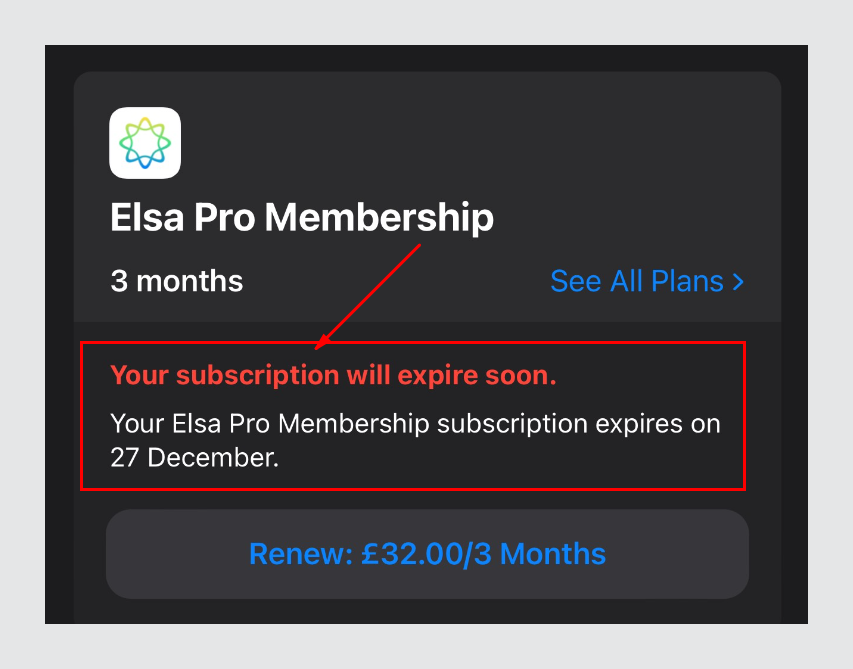
After canceling the subscription, your subscription will remain active until the expiration date is indicated. In addition, you will no longer be charged on the next billing date.
Was this article helpful?
Or open the chat in the corner to ask follow-up questions.